Click here for Master Tutorials
Owner Master Functions (Condominium Owner Account Module R3 required) | |
|---|---|
| Add Pay Owner Bills Not available when R6 Timeshare is installed. Post Recurring Charges* | |
* Indicates a month-end procedure.
Owner Options (Condominium Owner Account Module R3 required) | |
|---|---|
| Audit Report Global Post | Post Charge |
Timeshare Overview (R6 Timeshare & Interval Ownership Required) | |
|---|---|
| Check Timeshare Weeks | |
Overview
Post charges to multiple owners at one time.
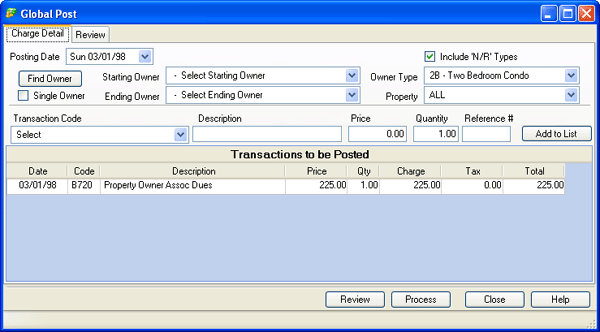
Charge Detail Tab
- Posting Date
- Select a date from the calendar function or enter the date directly. This will be the date the charge is posted.
- Find Owner Button
- Click Find Owner button to select a single owner from the Owner Analysis grid. The selected owner name is automatically sent to the Starting Owner field, and the Ending Owner and Property fields are disabled.
- Single Owner
- Check this box to post to only one owner. Then find the owner from the list. Once checked, the Ending Owner field is disabled. The default setting is unchecked or All Owners.
- Starting and Ending Owner
- When global posting to owners, select from the drop-down list to signify with which owner to start and with which to end.
- Include N/R Types
- N/R represents non-rental owner types. When checked, charges are posted for the selected owner types, including non-rental owner types, when the Process button is clicked.
- Owner Type
- If posting charges to a certain owner type, select that from the drop down.
- Property
- If posting charges to all owners in a certain property code, select that from the drop down.
- Transaction Code
- Select the appropriate Transaction Code from the drop-down list by clicking on the down-arrow. The transaction description and/or price is populated into the appropriate fields if already in the system when the transaction code was added. If not, the user can enter text using the keyboard.
- Description
- Enter up to 28 alpha-numeric characters to describe the charge being posted.
- Price
- Some transaction codes may be entered in the system with existing pricing information. If so, this field is automatically updated based on the selected Transaction Code. Otherwise, enter the Price. The maximum amount is $99,999.00.
- Quantity
- Enter the Quantity if greater than one. The maximum amount is 99,999.00.
- Reference#
- Enter up to six alpha-numeric characters to help identify the charge being posted.
- Add to List
- Once the Transaction Code is selected and the Description, Price, Quantity, and optional Reference# are entered, click Add to List to display the charge in the Transactions to be Posted area.
- Transactions to be Posted
- Once transaction details are entered and the Add to List button clicked, that information is displayed in the Transactions to be Posted area. Regardless of how many transactions are listed in this area, NONE are actually posted until Process button is clicked. Click Close to discard all charges in the Transactions to be Posted area (confirmation required before abandonment).
Review Tab
Once charges are defined on the Charge Detail tab and the Review button/tab is clicked, the resulting detail is displayed on the Review Tab. Each owner to receive the charge is listed in the grid. Click Review to refresh the grid in summary, and click Process to post the charges to the owner accounts.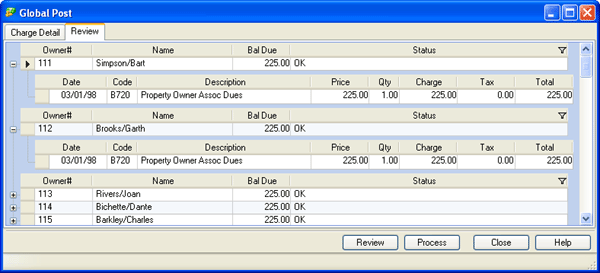
 Expander
- When viewing data, click the expander icon to display the detail that feeds the summary information. For example, Owner 112 Garth Brooks will be charged $225. Expand the row to view the Date of posting, Transaction Code, Description, Price, Qty, Charge (Price x Qty), Taxes, and Total (Charge + Taxes). Once the expand feature is active, the icon changes to
 and returns the view back to a summary.
Click these links for Frequently Asked Questions or Troubleshooting assistance.
09/01/2011