-
- Click here for a tutorial of the RDPWin Housekeeping History.
Overview
Pay outsourced housekeeping vendors. This function requires the Work Orders and Asset Management (RZ) module. If RZ is not installed, the system prompts with a "Call RDP" message box. Configure vendor type, transaction code, and statement report for Vendor Payables using both the Work Orders & Asset Management module and the Housekeeping module. Follow these steps:
- Add Vendor Type - To configure Housekeeping Vendor Payables a vendor type must be added for Housekeeping using the Work Orders and Asset Management module. See configure vendor type for details.
- Add Vendor - Once the vendor type is created, use the Vendor List in the Work Orders and Asset Management module to add the housekeeping vendor information using the vendor type created in Step 1. The vendors can either be company names or individual names. See add vendor for details.
- Add Transaction Code - Use RDPDOS to add a housekeeping payables transaction code to the B8 table. (Coming soon is the ability to do this in RDPWin.)
- Select Vendor Type - From the Housekeeping Configuration form, click on the Transactions tab. In the Vendor Payables section, select the Housekeeping Vendor Type as configured in the first step.
- Select Transaction Code - Select the Vendor Payable Transaction Code to designate as the default from the B8 table as configured in Step 3.
- Select Statement Report - Designate the default report to use for Housekeeping vendor statements. The supplied sample is Reports10\Housekeeping\VendorStatement.rpt.
- Associate Staff with Vendors - From the Housekeeping Configuration form, click on the Staff tab. Associate each housekeeper with a vendor. This may seem redundant, especially if the housekeeping vendors are individuals (see Mary Martinez in the demo files). However, the Work Order Vendors and Housekeeping bust be connected.
- Include Vendors of Type - From the Housekeeping Configuration Staff tab, the “Include Vendors of Type” drop-down limits the choices in the Vendor column to only vendors of the selected type (e.g., Housekeeping).
- Enable Cost Tracking - From the Housekeeping Configuration form, click on the Miscellaneous tab. Check the "Enable Clean Fixed Cost Tracking" box.
- Configure Clean Cost Information - See Cost Levels for detail.
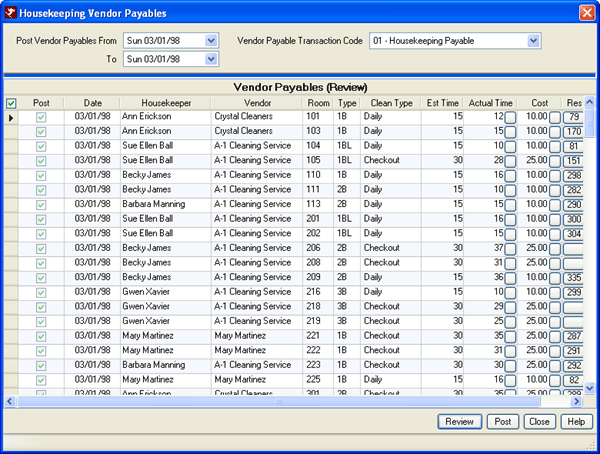
Post Vendor Payables
Posting requires the Work Orders and Asset Management (RZ) module. If not installed, the system prompts with a "Call RDP" message box. To post the housekeeping vendor payables, select the following:
- Post Vendor Payables From and To (Date Range)
- Choose the dates for which to post payables for the cleans performed. If dates are chosen more than once, duplication is not possible. Once a payable is posted for a clean, it is marked as posted and cannot be posted again.
- Vendor Payable Transaction Code
- If the Vendor Payable Transaction Code is designated on the Housekeeping Configuration Transactions tab, then that default setting is already selected in this drop-down field. Click and select a different code to change from the default setting.
- Review
- Click the Review button. A list of payables to be posted comes up. Uncheck Post for any that you prefer to skip. You can also change the Actual Time, Cost and Note columns.
- Post
- Once reviewed, click Post and the transactions for the selected Vendor Payable Transaction Code are posted. Once complete, the results appear in a grid and display the Post Status of either "Posted OK" or Skipped. These posted payables are processed for payment by the accounting department when the Work Orders Vendor Payables function is performed.
Statements
Both the Work Order and Housekeeping Vendor Statements use the same
format for processing statements with one exception: the default statement
report set on the respective configuration forms. A sample of the
statement is shown below: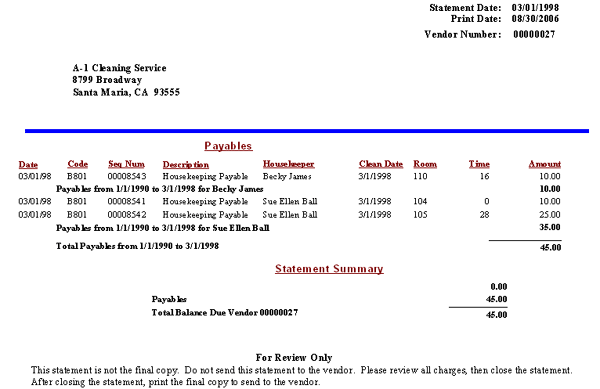
For detail on selecting the correct features on this form, please see Vendor Statements.
Click these links for Frequently Asked Questions or Troubleshooting assistance.
04/05/2010
© 1983-2009 Resort Data Processing, Inc. All rights reserved.