Click here for Other File Utilities
Click here for tutorials
Overview
The Purge Old Records and Files program helps improve system performance by deleting old log files and database records. Certain logs and files can be quite large, and purging these files can free up a great deal of disk space.
Purge Old Log Files
RDP creates many daily log files, which are designed to help troubleshoot problems with RDP interfaces, the IRM, and other systems. Purging these files can help free up disk space and possibly improve system performance.
 WARNING: DO NOT run this utility without first consulting RDP Support. A proper backup of the entire RDPNT folder is required before beginning. The purge utility completely deletes files and records from the RDP system. A password must be obtained from RDP Support before beginning.
- Make a full system backup of the RDPNT folder. For more information on backups, see "RDP Backup Requirements."
- In RDPWin, go the System main menu --> File Utilities --> Purge Old Records and Files.
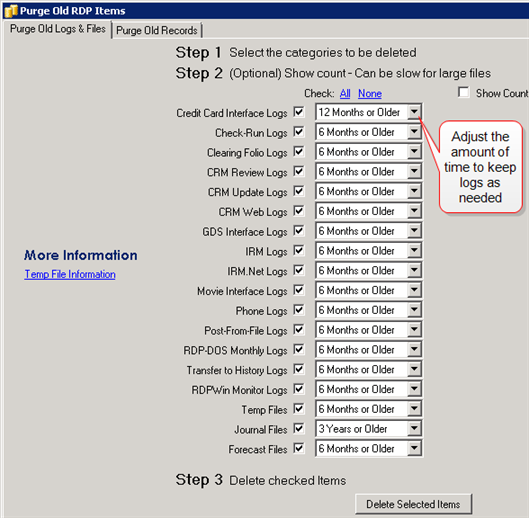
- Click the Purge Old Log Files tab.
- Select the logs to purge by checking the appropriate box, or click the All link above the list to place a check in each box. RDP recommends purging all logs.
- Adjust the amount of time to keep each log as needed. The default settings are recommended.
- To view the number of records purged from each file, place a check in the box to Show Count.
- Click the Delete Selected Items button. Enter the purge password obtained from RDP Support.
Purge Old Records
Purging old database records ensures that the RDP data files do not get too large and effect performance. RDP recommends running the purge once every six months.
WARNING: DO NOT run this utility without first consulting RDP Support. A proper backup of the entire RDPNT folder is required before beginning. This utility completely deletes files and records from the RDP system. A password must be obtained from RDP Support before beginning.
- Make a full system backup of the RDPNT folder. For more information on backups, see "RDP Backup Requirements."
- In RDPWin, go the System main menu --> File Utilities --> Purge Old Records and Files.
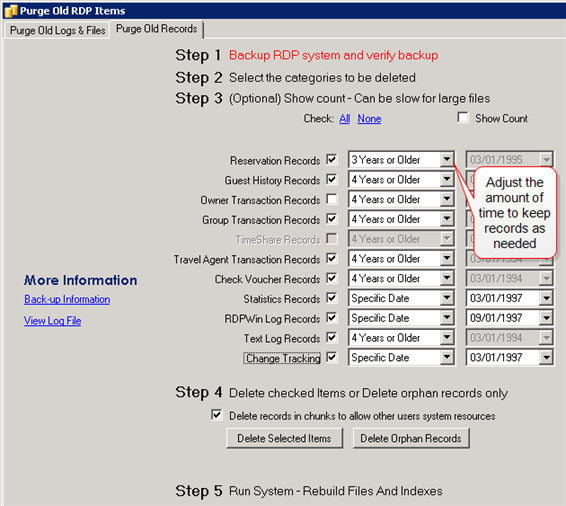
- Click the Purge Old Records tab.
- Select the records to purge by checking the appropriate box, or click the All link above the list to place a check in each box.
- Adjust the amount of time to keep the records as needed. RDP recommends 4 years or older, except for Change Tracking, which 1 year or older is sufficient.
- To view the number of records purged from each file, place a check in the box to Show Count.
- Click the Delete Selected Items button. Enter the purge password obtained from RDP Support.
- Run the Rebuild Files and Indexes from the System main menu --> File Utilities --> Rebuild Files and Indexes. For more information about this utility, See "System - File Utilities - Rebuild Files & Indexes"
Click these links for Frequently Asked Questions or Troubleshooting assistance.
08/12/2011