Click here for
tutorials
Import Chart of Accounts
The Import Chart of Accounts option allows the standard RDP GL Account or a custom text file with the GL account number, descriptions, etc. to uploaded into RDPWin. This eliminates manual entry of the accounts. The file has a specific format that must followed in order for the information to be properly imported.
Configuration
There is an existing GL import file that can be used as a template for entering the data. This file is located in the RDP folder and is called GLCCS.txt. Below is an example of this file. It has been opened using Notepad.
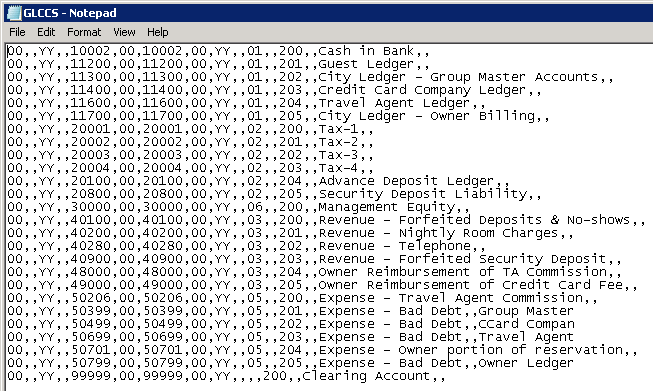
Each piece of data is separated by a comma. The information in this text file is based on the Totals file DDF. To access the DDF info in RDPWin, go to the System Menu --> DDF Info --> select the Totals file from top selection. The DDF fields display in the center section.
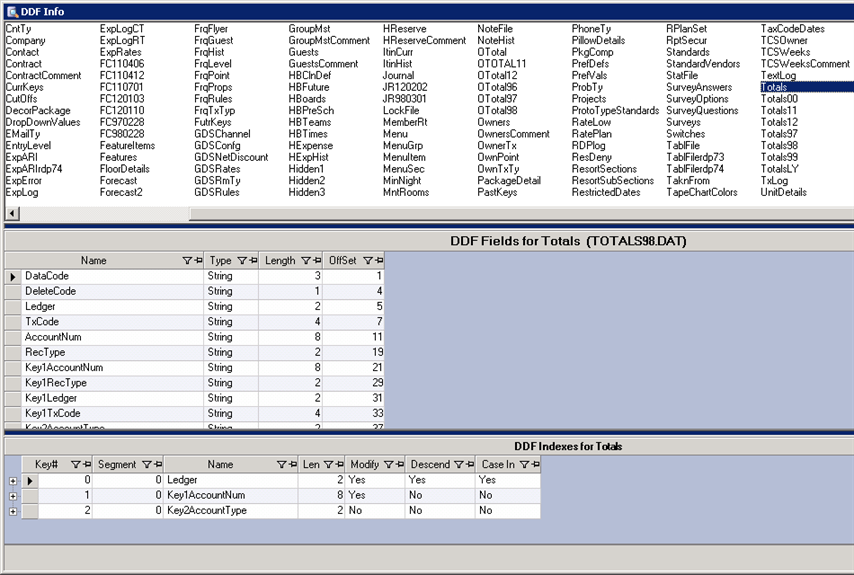
The table below explains what DDF information must be entered in the text file. Each piece of data is highlighted in the text file and is listed next to the DDF field. The first 16 DDF fields in the Totals file are used in the GL import text file.
| DDF Field | Text File Location |
|---|---|
| DataCode - this is always 00 |

|
| DeleteCode - this is always blank and there is no space between the commas |

|
| Ledger - this is always YY which represents ledger codes in RDP |

|
| TxCode - this is always blank and there is no space between the commas |

|
| AccountNum - this is the GL Account number to be used for RDP and can be up to 8 alphanumeric characters |

|
| RecType - this is always 00 |

|
| Key1AccountNum - this is the same as the AccountNum field |

|
| Key1RecType - this is always 00 |

|
| Key1Ledger - this is always YY which represents ledger codes in RDP |

|
| Key1TxCode - this is always blank and there is no space between the commas |

|
| Key2AccountType - this is based on the type of account the GL is assigned to: 01 = Assets; 02 = Liabilities; 03 = Revenues; 05 = Expenses; 06 = Equity; and blank = no account type |

|
| Key2ReportGroup - this is always blank and there is no space between the commas |

|
| Key2ReportSeq - this is the order within the account type that the account number will display on reports; ie. 200, 201, 202 |

|
| Key2NotUsed - this is always blank and there is no space between the commas |

|
| Description - this the description of the GL account in RDP which can up to 40 characters. |

|
| Flags - this is always blank and there is no space between the commas |

|
Once the file is configured properly, save this file with a different name. If this chart of accounts is for a new system, when RDPWin is launched for the first time, a prompt to select the chart of accounts displays. Select the Upload Custom Chart of Account and browse to the file just saved.
For existing RDP systems, click Import Chart of Accounts from the System menu --> File Utilities.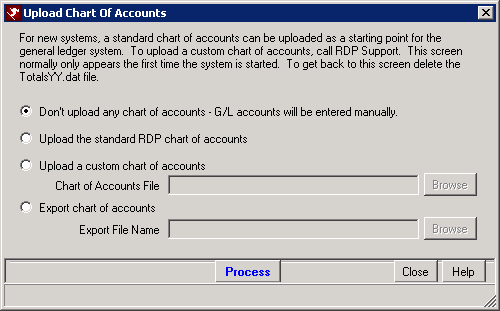
- Don't Upload any Chart of Accounts
- When selected, the standard chart of accounts that is shipped with RDPWin is not uploaded. All general ledger accounts must be entered manually.
- Upload the Standard RDP Chart of Accounts
- The RDP system comes loaded with a standard chart of accounts. Select this radio button to import that standard chart.
- Upload a Custom Chart of Accounts
- Select this radio button to enable the Chart of Accounts File field to designate a customized chart. Either type in the file path directly or click Browse to locate the appropriate existing file. If no file is identified, an error message is displayed.
- Export Chart of Accounts
- This option allow the existing chart of accounts to be exported into a file and uploaded into another RDP directory.
Click these links for Frequently Asked Questions or Troubleshooting assistance.
03/01/2012
© 1983-2012 Resort Data Processing, Inc. All rights reserved.