Click here for tutorials
Overview
The Database Credentials Maintenance screen provides centralized management of database authentication and user credentials for the RDP application. This tool allows administrators to enable database security, manage third-party user accounts, and maintain credential configurations.
Security Status Panel
Navigation: System → Configuration → Database Credentials Maintenance
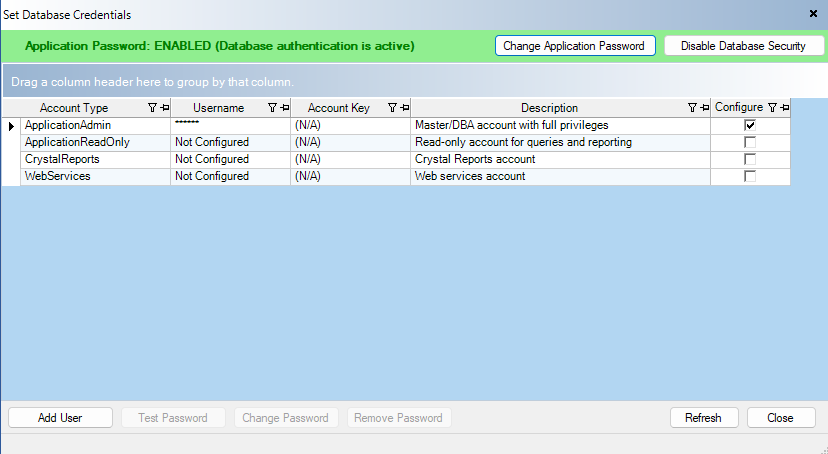
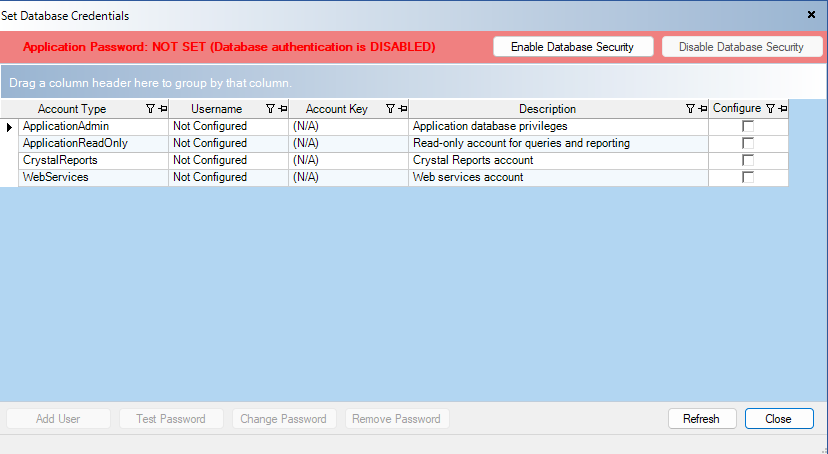
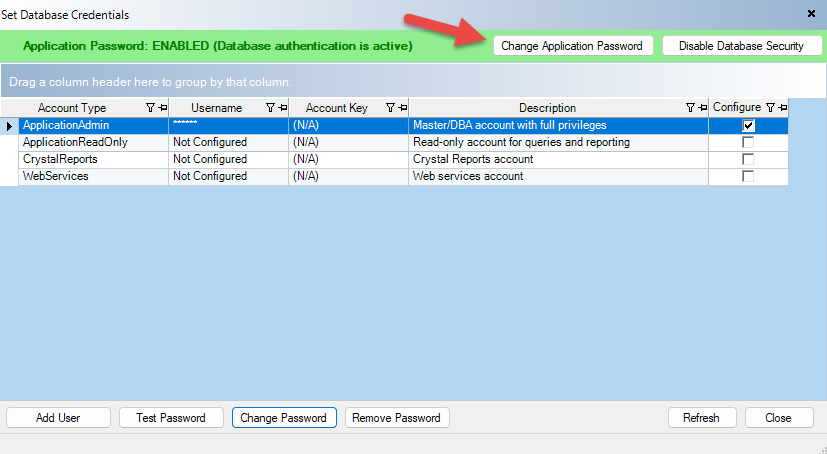
Green (Enabled): Application password is set, and database authentication is active
Red (Disabled): Application password is not set, and database authentication is disabled
Credential Types
The system supports the following credential types:
| Credential Type | Description | Use Case |
|---|---|---|
| Application Admin | Application database privileges | Main application account with full database access |
| Application Read Only | Read-only account for queries and reporting | Used for reporting tools that only need to read data |
| Crystal Reports | Crystal Reports account | Dedicated account for Crystal Reports connections |
| Web Services | Web services account | Used by web service integrations and application interfaces |
| Third Party Integration | Third-party integration account | External system integrations (supports multiple accounts with Account Keys) |
Enabling Database Security
To enable database authentication for the first time:
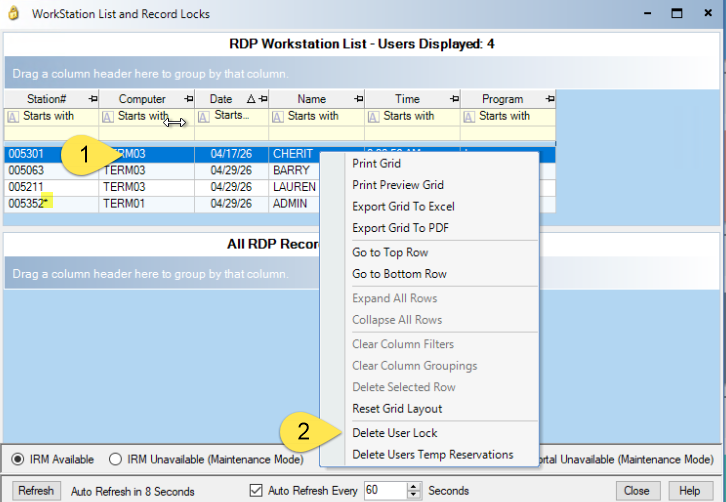
- All users must be logged out of RDP when enabling database security. Verify that all users have logged out by going to - System| Locks and Users.
- Right click on the user in the Workstation List
- Delete User Lock
- Repeat for all users except for your user which is identified by the * at the end of the Station #
- System | Configuration | Database Credential Maintenance
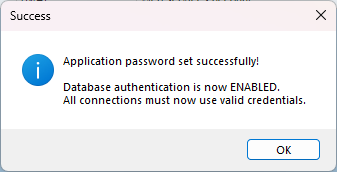
- Click the "Enable Database Security" button
- Review the warning message carefully
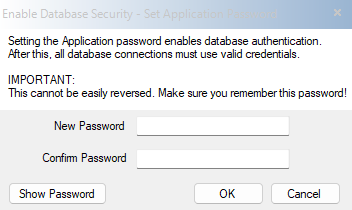
- Enter a secure password for the Application account
- Confirm the password
- Click OK
Important Notes
-
To enable or disable database security, only one connection to the database can exist
-
Once enabled, database security cannot be easily reversed
-
Save this password securely - it will be required for all administrative functions
-
All database connections will require valid credentials after enabling
-
The application will automatically restart connections with the new credentials
Managing Credentials
The credentials grid includes:
-
Account Type: The credential type
-
Username: The database username (ApplicationAdmin shows as "********" for security)
-
Account Key: Additional identifier for Third Party Integration accounts
-
Description: Purpose of the credential
-
Configured: Whether credentials are stored (Yes/No)
To configure each account type:
- Ensure Application password is already set (required)
- Double-click an unconfigured credential type. Unconfigured credentials will have the Username "Not Configured" and the Configure check box "unchecked"
- Complete the user entry form:
- Username: Enter the database username you wish to use
- Password: Enter a secure password
- Confirm Password: Re-enter the secure password entered in the password field
- Click OK to create the user
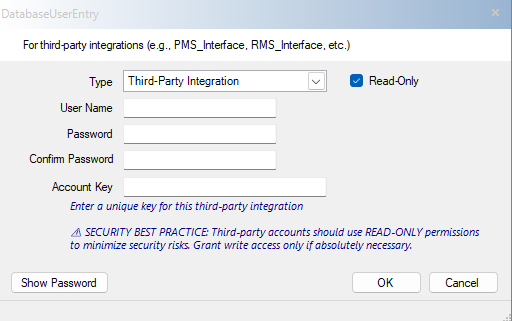
Adding a New Third Party Database User
- Ensure Application password is already set (required)
- Click "Add User" button (Third Party users)
- Complete the user entry form:
- Username: Enter the database username
- Password: Enter a secure password
- Credential Type: Select the appropriate type
- Read Only: Check if the account should have read-only access
- Account Key: (For Third Party Integration only) Enter a unique identifier
- Click OK to create the user
Changing a Password
To change the password for an existing database user:
- Select a configured credential from the grid
- Click "Change Password" or double-click the row
- Enter the new password
- Confirm the new password
- Click OK
Note: To change the Application Admin Password, use the "Change Application Password" button.
Upon change the system will close all database connections, update the application password in the database, update the stored credentials, re-establish connections with the new credentials and clear the authentication cache.
Removing Stored Credentials
To remove credentials from the configuration:
- Select a configured credential from the grid
- Click "Remove"
- Confirm the removal
Note: Application Admin credentials cannot be removed this way. Database Security needs to be disabled instead.
Disabling Database Security
To completely disable database authentication:
- Click "Disable Security"
- Read and confirm the warning message
- Click Yes to proceed
- Enter the current Application password to verify authorization
- Click OK
What happens when during disable?
The system performs the following actions:
-
Verifies your authorization with the Application password
-
Deletes all database users from the database
-
Disables database security
-
Removes bootstrap credentials
-
Removes all stored credentials from the configuration
-
Clears the authentication cache
-
Reconnects without credentials
Security Implications
-
Anyone with network access can connect to the database without credentials
-
All database protection is removed
-
This is a significant security risk
-
Only disable security if absolutely necessary
Click these links for Frequently Asked Questions or Troubleshooting assistance.
5/20/2026
© 1983-2026 Resort Data Processing, Inc. All rights reserved.